How to connect your Discord community to an AI agent with the Subo MCP server
The Subo MCP server lets an AI assistant run your Subo community for you: build a project from a sentence, check its script, launch it, read the responses and the analysis. MCP stands for Model Context Protocol, the open standard AI apps use to connect to outside tools. If your AI app supports MCP, it can connect to Subo.
There are two ways to connect, and most people want the first:
- Sign in with OAuth (step 1). Your AI app sends you to Subo, you pick a community and approve, and you are done. No key to create, copy or protect. This works in claude.ai, Claude Desktop and Claude Code, and in any other app that supports MCP sign-in.
- Use an API key (step 2). For apps that cannot sign in but can send a custom header, such as Grok Bot.
What you need either way:
- Admin access to a Subo community. Connecting an AI app is an Admin decision, the same rule as creating an API key.
- an AI app that supports MCP.
1. Sign in with OAuth
In claude.ai or Claude Desktop: open Settings, then Connectors, then Add custom connector. Give it a name (such as “Subo”) and enter:
https://api.subo.ai/mcpClick Connect.
In Claude Code: open a terminal (Terminal on macOS, PowerShell or Windows Terminal on Windows), not a chat, and run:
claude mcp add --transport http --scope user subo https://api.subo.ai/mcpRestart Claude Code (step 4 explains why), type /mcp, choose subo and authenticate.
Either way, your browser opens Subo. If you are not signed in, sign in with Discord. The page that follows is headed “Connect … to Subo”, with your AI app’s name in it:
- Community: pick the one the agent will work in. Only communities where you are an Admin are listed.
- Access level: how much the connection can do. Admin is everything you can do yourself, including community settings and deleting responses. Creator is creating and editing projects only, with no community settings and no deleting responses. Creator is a good choice for a first agent, because there is less it can reach.
- The page also says where you go back to after you answer. When that is your own computer (Claude Code), it warns you to approve only if you started the connection yourself just now.
Click Approve. You land back in your AI app, connected. Skip to step 5 to check it.
The connection now appears on the Account page of the Subo web app, under API Access, with the note “Connected through OAuth. Renews itself; revoke it to disconnect the app.” It renews itself in the background, and asks you to sign in again only if it goes unused for 90 days.
2. Or connect with an API key
Use this when your AI app has no sign-in option for MCP servers but can send a custom header.
Open the Account page in the Subo web app, go to API Access, and create a key. Under “This key represents”, choose Bot or agent, give it a name you will recognize later (such as “Grok Bot”), and pick its access level, Admin or Creator, as described in step 1.
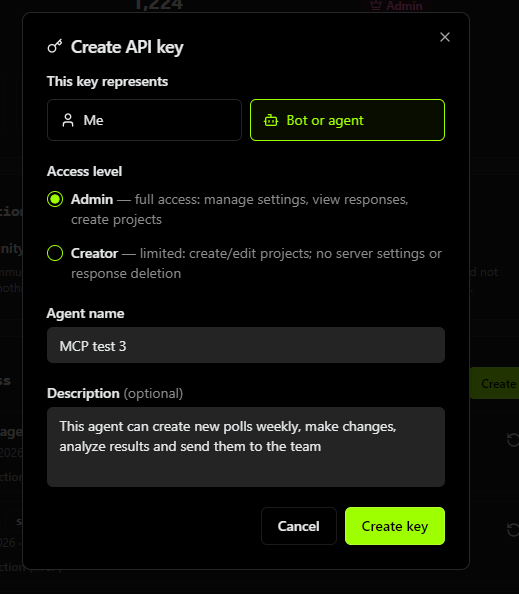
Create the key. The confirmation panel shows the key once, and below it a section headed Connect an AI agent with the connection config already filled in with your new key: a one-line command for Claude Code and a JSON block for other AI apps, each with a copy button.
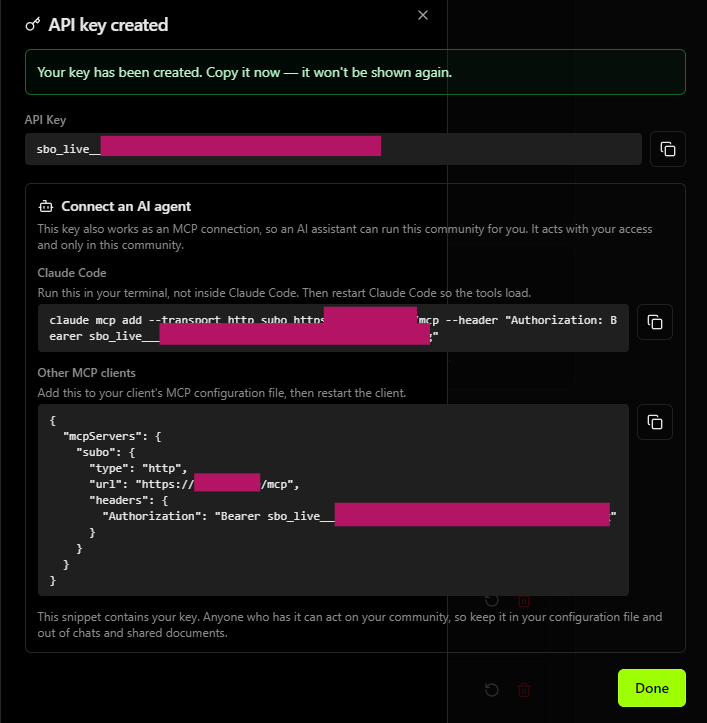
Copy it now. The key is only ever shown once. If you come back later, every agent key in the list has an Agent connection (MCP) section with the same config, but with YOUR_KEY in place of the key. If you no longer have the key, regenerate it and the panel comes back with the new one filled in.
Add the JSON block to your app’s MCP configuration file:
{
  "mcpServers": {
    "subo": {
      "type": "http",
      "url": "https://api.subo.ai/mcp",
      "headers": {
        "Authorization": "Bearer sbo_live_xxxxxxxxxxxxxxxx"
      }
    }
  }
}
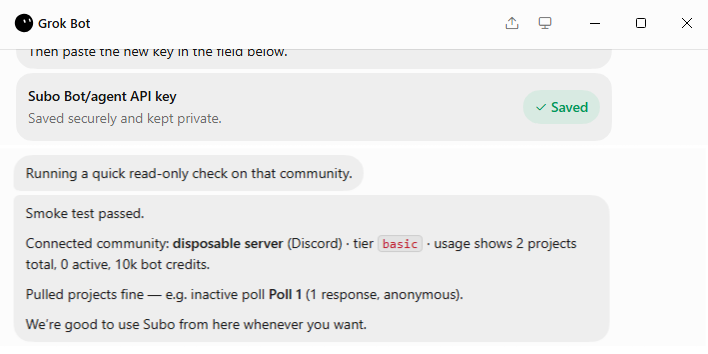
Where that file lives, and whether the outer key is called mcpServers, depends on the app, so check its documentation for “remote MCP server”. Some apps skip the file and ask for the key in a settings field instead, which is how Grok Bot does it:
The Claude Code command from the panel works too, if you would rather use a key than sign in. Run it in a terminal, never in a chat: pasted into a chat, it installs nothing and leaves your key sitting in a conversation.
A good first move in any app is the one in the screenshot: ask it to read something harmless and report back, before you let it change anything.
3. In Claude Code, pick the right scope
Claude Code can remember a connection in three places, and the default is the one most likely to look broken. The commands above already include --scope user.
| Scope | Where Subo is available | Use it when |
|---|---|---|
local (the default) | Only in the folder you ran the command from | You want Subo in one project folder only |
user | In every folder, every session | Almost always. This is the one to use |
project | Anyone who opens this folder, through a .mcp.json file in it | Never with a key. That file is often committed to git, and it would carry your key |
If you ran the command without --scope from your home folder and then started Claude Code somewhere else, the connection exists but is invisible from where you are. It looks exactly like a failure. Run claude mcp list from the folder you work in: if subo is missing there, add it again with --scope user.
4. Restart your AI app
A connection added while a session is running never appears in that session. Quit Claude Code completely (or whichever app you use) and start it again. claude.ai picks up a new connector without a restart.
5. Check that it worked
In claude.ai, ask: “List my Subo projects.” In Claude Code, type /mcp. You should see Subo connected, with its operations:

The count is the number of operations Subo offers your agent: 44 today, and it grows as we add to the API, so it may be higher than in the screenshot. If Subo shows as failed instead:
- Signed in with OAuth: the sign-in may not have finished. Type
/mcp, choosesuboand authenticate again. If the Subo page said you are not an Admin of any community, see the FAQ below. - With a key: the most likely cause is the key itself: a typo, a leftover
YOUR_KEY, or a key that has since been revoked. Copy the config again from the Account page (regenerate the key if you no longer have it) and re-add the connection.
Then try the ready-made review command that comes with the connection. Type /subo in Claude Code and the connection’s two commands appear in the list:

/subo:weekly_review reads your recent projects, their responses and their analysis, then writes a short review: what ran, what came back, and one recommendation for your next project, with the questions it would ask. It looks back 14 days unless you give it a number, such as /subo:weekly_review 30. It only reads. Nothing gets created until you say yes, and it asks before running an AI analysis, because that uses your community’s credits.
If you added the connection under another name, the command follows it: a connection called subo-gaming gives you /subo-gaming:weekly_review. Other AI apps may show it differently, or not at all; in that case, ask for a review of your recent projects in plain words.
The second command, /subo:build_from_goal, is meant to take a goal and build a project from it. Claude Code currently passes it only the first word you type after the command, so for now, describe what you want in your own words instead:
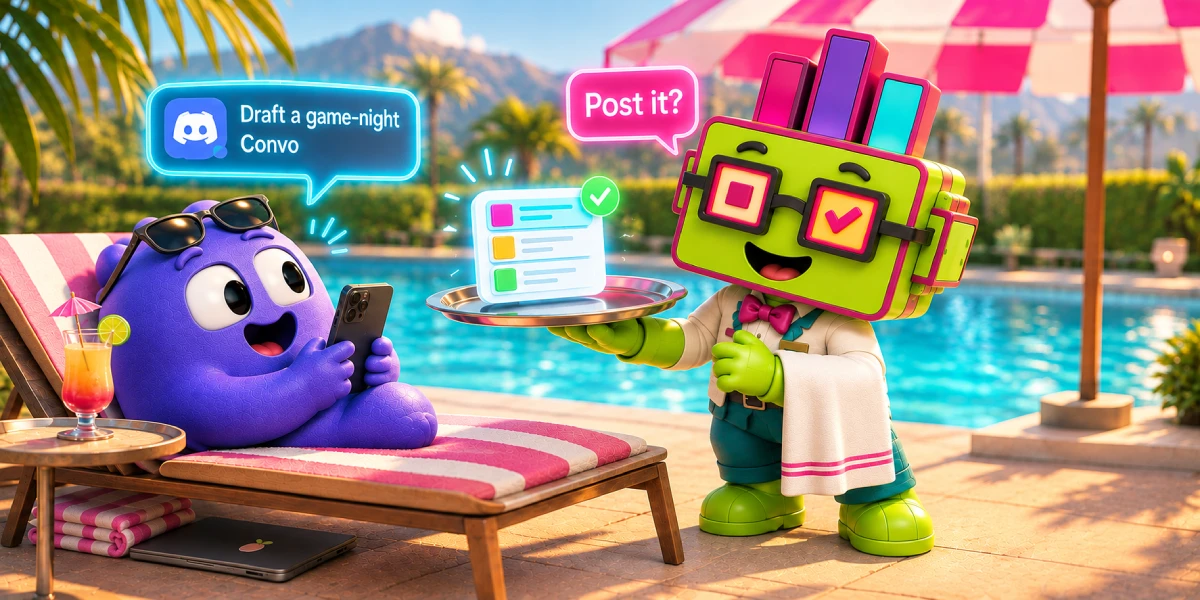
Draft a short Convo asking members how last week’s game night went, with one open question at the end. Check the script, but don’t open it yet.
The agent looks for a template to start from, writes the script, runs Subo’s validation, and stops. Review it in the web app if you like, then tell the agent to open it.
6. Learn the four labels
Every operation carries a label your AI app can read, so it knows which ones to ask you about first.
| Label | What it means | Examples |
|---|---|---|
| Read-only | Looks, changes nothing | List projects, read responses, read the analysis |
| Normal change | Changes your setup, nobody else sees it yet | Create a project, edit a script, clone a template, create a webhook |
| Outward | Reaches real people | Open or close a project, grant XP, grant or remove an accomplishment, send a test webhook |
| Destructive | Deletes something or invalidates a secret | Delete a project, a block or responses, delete a webhook, rotate a webhook secret, disconnect a verified-audience source |
Whether you are asked depends on your AI app’s permission settings. In Claude Code:
- Default mode and “accept edits” mode ask before every Subo operation you have not permanently allowed. The prompt includes the label, so a delete says Destructive in so many words.
- Auto mode decides for itself. An action you asked for by name goes through: “Delete Poll 268” deletes it without a prompt. An action you did not ask for, or a batch it cannot check, is stopped or turned into a question.
Press Shift+Tab in Claude Code to switch modes. If you are new to this, stay in the default mode until you trust how your agent works.
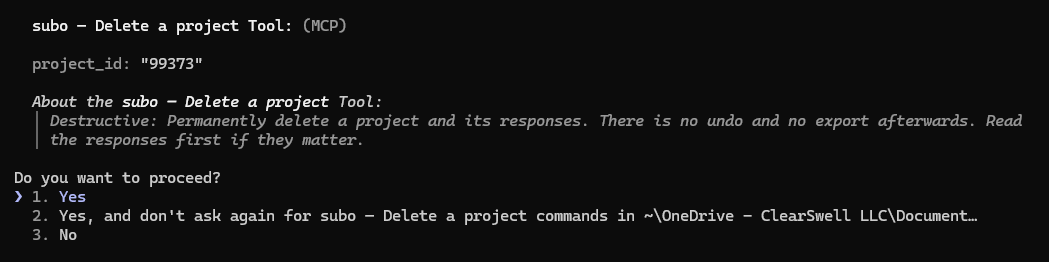
Keep that safety net. The prompt offers “Yes, and don’t ask again” so you can stop being asked about an operation. That is fine for reading and for normal changes. Leave Outward and Destructive operations off that list.
Subo has one check of its own: it will not delete a project that is still open. Close it first, then delete it. In our production test we asked the agent to clean up old projects, and before deleting one that was still open, it stopped on its own to ask.
Three things the agent cannot do at all, whatever you ask:
- create, rotate or delete API keys. Minting credentials stays with you, on the Account page.
- change who has access to your community.
- connect a new verified-audience source. That requires signing in to a third-party account, which only a person can do.
7. Look after the connection
- One connection, one community. It can only ever reach the community you picked when you signed in, or the one the key was created in. If you manage several communities, add Subo once per community under its own name, such as
subo-gamingandsubo-book-club. - It has your access, never more. The connection acts with the access level you chose, and never more than you have right now. If your access in the community is reduced or removed, the connection follows within about ten minutes.
- You can revoke it any time from the Account page, under API Access. That works the same for a sign-in and for a key.
- With OAuth, there is no key for you to handle.
- With a key, treat it like a password. It is stored in plain text in your AI app’s configuration file (for Claude Code,
~/.claude.json). It is not sent to the AI model in normal use. It is exposed if you paste it into a chat, a document or a screenshot.
To remove the connection from Claude Code:
claude mcp remove subo --scope userIn claude.ai, remove it from Settings, then Connectors.
More things to ask
- “Clone the prediction contest template and set it up for Sunday’s final.”
- “Summarize the open-text answers from the last feedback project.”
- “Who earned the most XP this month?”
- “Create a webhook that sends every new response to this URL.”
For the ideas behind a good project, the survey design recipes are written so an agent can follow them directly. If you would rather call the API yourself, the API quickstart covers the same features in code.
The sign-in page and the connection panel on the Account page are in English only for now; the rest of the web app is translated. Questions, or something the agent did that you did not expect? Tell us in the Support Server.
Frequently asked questions
What is the Subo MCP server address?
https://api.subo.ai/mcp. Most AI apps sign in with OAuth: you approve the connection on Subo and there is no key to copy. Apps that cannot sign in send the header Authorization: Bearer sbo_live_… instead, using an API key of type Bot or agent from the Account page of the Subo web app.
Which AI apps can connect to Subo?
Any app that supports the Model Context Protocol and either signs in with OAuth (claude.ai, Claude Desktop and Claude Code do) or lets you add a remote (HTTP) server with a custom header. We have connected Subo from claude.ai, Claude Code and Grok Bot.
How do I connect Subo to claude.ai?
Open Settings, then Connectors, then Add custom connector, and enter https://api.subo.ai/mcp. Click Connect, sign in to Subo with Discord, choose the community and the access level, and approve. No API key is involved.
I added the connection but my AI app does not see Subo. What went wrong?
Usually one of four things. The Claude Code command was pasted into an AI chat instead of a terminal. The connection was added with Claude Code's default local scope from a different folder than the one you are working in. The app was not restarted: a connection added while a session is running never appears in that session. Or the sign-in was never finished: in Claude Code, type /mcp, choose subo and authenticate.
The sign-in page says only an Admin can connect an app. Why?
Connecting an AI app is an Admin decision in Subo, the same rule as creating an API key. The sign-in only lists communities where you are an Admin. Ask an Admin of your community to connect it, or to make you an Admin.
Can the agent delete my projects or message my members without asking?
Every operation is labeled, and deleting or reaching members carries a Destructive or Outward label your AI app can read. In its default and accept-edits modes, Claude Code asks before each of those calls and shows you the label. In auto mode, it goes ahead with an action you asked for by name. Do not add Outward or Destructive operations to your app's always-allow list.
What is /subo:weekly_review?
A ready-made command that comes with the Subo connection. It reviews your recent projects and their responses and recommends what to run next, without changing anything. It looks back 14 days unless you give it a number, such as /subo:weekly_review 30.
Can one connection manage several communities?
No. One connection reaches one community: the one you choose when you sign in, or the one an API key was created in. If you run several, add Subo once per community, with a different name for each.
Does it cost anything?
No. Connecting takes the Admin role in the community, and nothing else to buy or enable. Requests count against the same per-minute API rate limit as any other use of the community's API, which ordinary agent use stays far below.