
File Uploads in Discord: Collect Screenshots, Clips and PDFs
Some answers are not words. The bug report needs the screenshot, the fan-art contest needs the art, the staff application needs the résumé, the giveaway claim needs the proof of purchase. Until now those arrived somewhere else: a busy channel, someone’s DMs, a shared folder, and then a long evening matching files to names.
A Convo can now ask for the file itself. The new File Upload block lets members send screenshots, clips, PDFs and logs as their answer, in Discord or on the web, and they land with the rest of that member’s answers, stored privately.
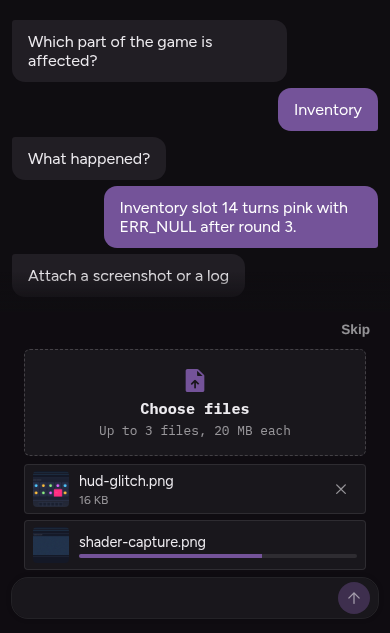
How members send a file
On the web, the block shows a Choose a file button (Choose files when several are allowed), and the area also takes files dragged onto it. On a phone it opens the phone’s own picker, so the camera roll is one tap away. The limits sit under the button in plain words, such as “Up to 5 files, 50 MB each”. Each file shows its progress while it uploads and keeps a Remove button until the answer is sent. Large files go straight to storage, so a 200 MB video does not time out halfway.
In Discord, the question ends with a short hint (“Attach the file(s) to your reply.”), followed by the limits and the accepted kinds of file. Members attach files to a normal reply, and they can send them over several replies: each one adds to the files already kept.
When a file is refused, the member is told why in one sentence: the file is too large, it is not a kind this question accepts, or it does not match its name. In Discord the bot answers with a receipt, ✅ for each file kept and ❌ with the reason for each one refused. A good file is never thrown away because another one in the same reply was refused.
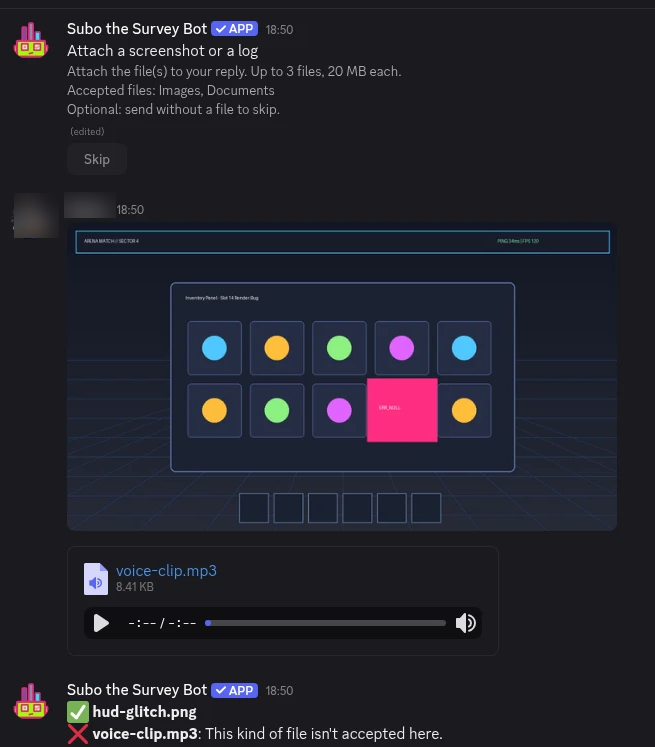
Setting it up
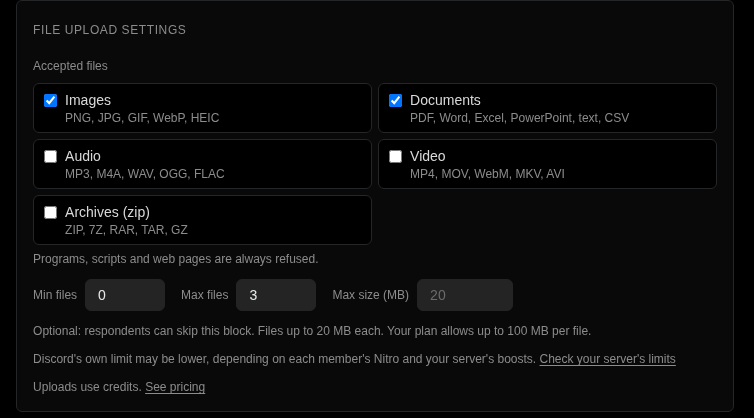
In the Script Editor, add a block from Input Questions > File Upload. Its File Upload Settings panel has four things to decide.
Accepted files. Any mix of five kinds:
| Kind | Formats |
|---|---|
| Images | PNG, JPG, GIF, WebP, HEIC |
| Documents | PDF, Word, Excel, PowerPoint, text, CSV |
| Audio | MP3, M4A, WAV, OGG, FLAC |
| Video | MP4, MOV, WebM, MKV, AVI |
| Archives (zip) | ZIP, 7Z, RAR, TAR, GZ |
The default is Images and Documents. Programs, scripts and web pages are always refused, and Subo checks what a file actually contains rather than trusting its name, so a program renamed photo.jpg does not get through.
Min files and Max files, up to 10 files per answer. Set Min files to 0 and the block becomes optional, with a Skip button, like any optional question.
Max size, per file. Left empty, a block takes files up to 20 MB (10 MB on Free), so members on the web and in Discord see the same limit. On the web you can raise it up to your plan’s maximum:
| Plan | Largest file on the web | Largest file in Discord |
|---|---|---|
| Free | 10 MB | 10 MB |
| Premium | 100 MB | 20 MB |
| VIP | 500 MB | 20 MB |
| Custom Bot | 500 MB | 20 MB |
In Discord, Subo takes files up to 20 MB, which is about what Discord lets most members post anyway. Discord’s own limit for each member depends on their Nitro and your server’s boosts, so if larger files matter, share the project’s web link. Discord explains its limits in its File Attachments FAQ.
Like any answer, a File Upload block works with skip logic and piping, which see the number of files sent. A bug report can ask “Anything else we should know?” only when no screenshot came in.
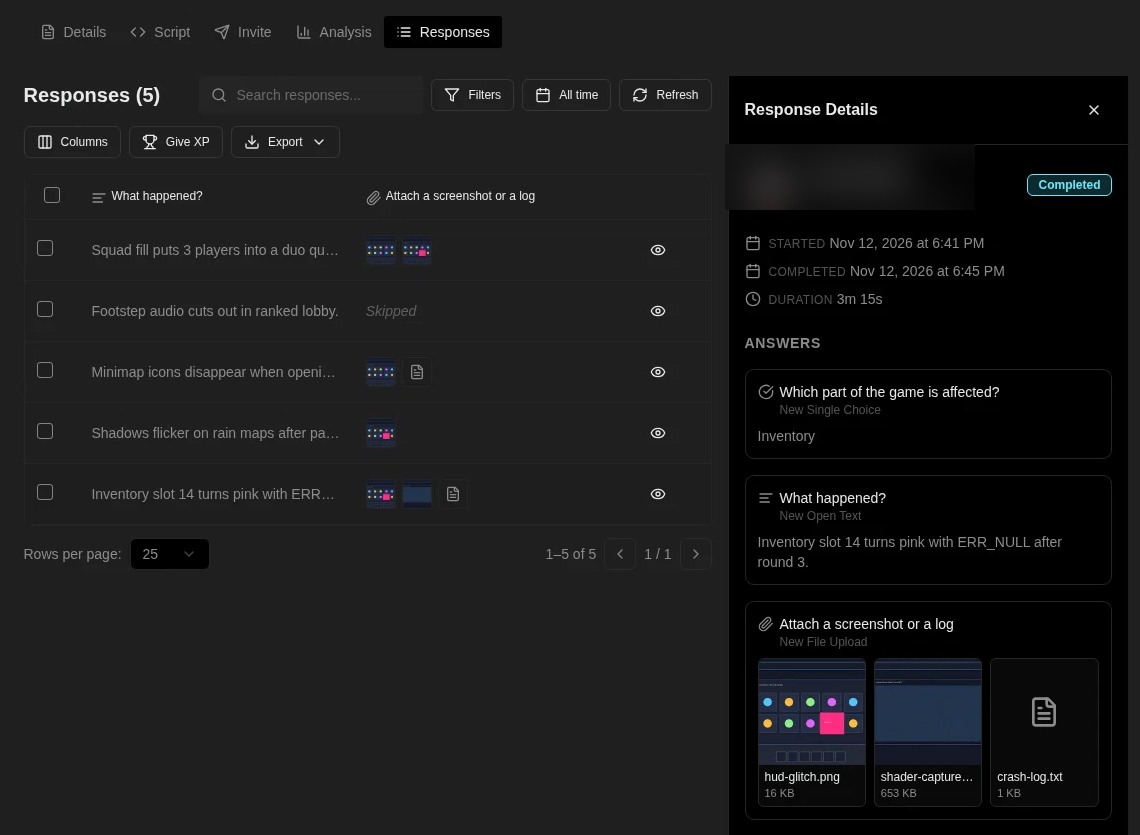
Reading the answers
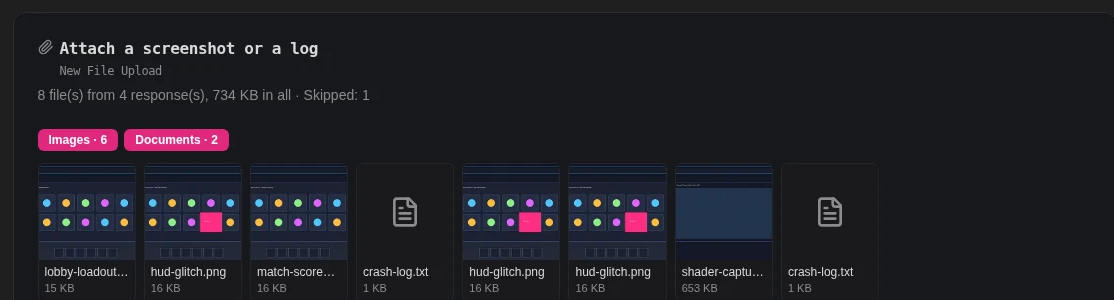
- Responses tab: each file answer shows up to three thumbnails and “+N” for the rest. The response’s details panel shows every file as a tile with its name and size. Images, audio and video open in the browser; other files download. Search matches file names.
- Analysis tab: a card per File Upload block with the totals (for example “12 file(s) from 9 response(s), 48 MB in all”), a count per kind of file, and a gallery of the newest files.
- Exports: the CSV, the Google Sheets export and the Full Report spreadsheet carry one link per file. The links never expire, and they only open for someone signed in to Subo as an admin of your community or the project’s creator. A spreadsheet forwarded too widely does not share the files with it.
- Discord
/resultsand the Full Report’s summary count the files per kind.
AI summaries skip File Upload blocks: they read written answers only.
Private by design
Files members send are kept apart from the images you use in your projects, in private storage with no public address. Every link goes through Subo’s sign-in check first, then opens a link that works for five minutes. Photos (up to about 15 MB on the web and 20 MB in Discord) are re-saved without their hidden metadata, which removes the camera details and the GPS location a phone writes into a picture.
Deleting a response deletes its files. So does deleting the project, resetting test answers, or your community’s data retention settings. Files are removed by a nightly cleanup, so a deleted file is gone within a day.
What it costs
File uploads work on every plan, Free included. Storing a file uses your community’s credits, charged once when the file is uploaded and covering 12 months of storage: 200 credits per MB, at least 10 credits per file. A 5 MB photo costs about 1,000 credits, a 1 MB document 200, a small screenshot 10 to 100. A file a member removes before sending their answer is refunded; a file deleted later is not.
If your community runs out of credits, a member who tries to upload is told the community cannot take more files right now, and can skip the question, even a required one. Nobody gets stuck halfway through a Convo because of your balance.
Why this is different from a form’s upload field
Google Forms, Typeform, Tally and Jotform all collect files, on a web page. Subo collects them where your members already are, in a reply in Discord, and on the web for everyone else, with the same rules in both places. Because every respondent arrives through Discord or a sign-in, each file comes with the member who sent it, their roles and the rest of their answers, and the links in your exports only open for the people who should see them.
Good places to start: the staff application template (add a résumé or portfolio step) and the bug report form (add a screenshot step). For everything else a form usually does, see Discord forms.
For developers
The Public API accepts the new block type file_upload, with an upload object for its rules (categories, min_files, max_files, max_bytes). Answers to it carry a files list with two links per file: url for people signed in to Subo, and download_url for code holding an API key. GET .../responses/files/{fileId} redirects to a signed link valid for five minutes, so follow redirects. Reading and downloading files costs no credits. AI assistants connected through the Subo MCP server can add and edit File Upload blocks and see each answer’s files, but cannot download the files themselves.
Try it
Open a Convo in the web app, add Input Questions > File Upload, and ask for the screenshot.
Subo the Survey Bot runs polls, quizzes and conversational surveys (Convos) inside Discord and on the web, with XP, roles and rewards for the members who answer.
Frequently asked questions
Can members upload files in a Discord survey or form?
Yes. Add a File Upload block to a Convo and members send files as their answer: in Discord they attach them to a normal reply, on the web they choose or drop them in. You pick which kinds of file are accepted (images, documents, audio, video, archives) and how many, up to 10 per answer.
How big can an uploaded file be?
By default 20 MB per file (10 MB on Free), the same on Discord and the web. On the web you can raise a block's limit up to your plan's maximum: 100 MB on Premium, 500 MB on VIP and Custom Bot. In Discord, Subo takes files up to 20 MB, and Discord may hold some members lower depending on Nitro and server boosts.
Who can see the files members upload?
Only your community's admins and the project's creator, after signing in to Subo. Files have no public address, and the links in exports only open for those same people, so a spreadsheet shared too widely does not share the files.
Does it cost anything to collect files?
File uploads work on every plan, Free included. Storing a file uses your community's credits: 200 credits per MB, at least 10 per file, charged once at upload for 12 months of storage. A 5 MB photo costs about 1,000 credits.
What happens if a member sends the wrong kind of file?
It is refused with a one-sentence reason, such as the file being too large or not an accepted kind. Programs and scripts are always refused, and Subo checks what a file actually contains, not only its name, so a program renamed photo.jpg is refused too. In Discord, good files in the same reply are kept.