Three keys that write your Subo messages for you: @, [ and :
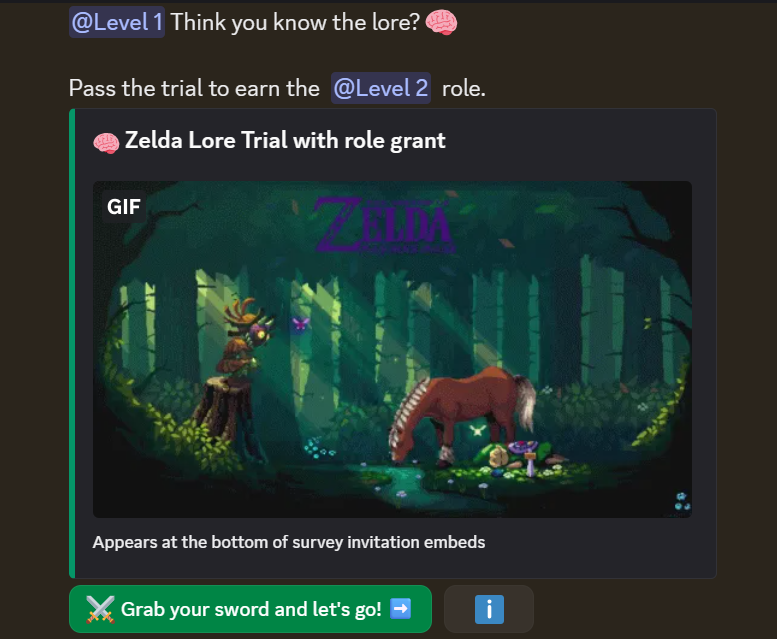
The invitation at the top of this post took under a minute to write. @Level 1 and @Level 2 are live role pills, the 🧠 sits in both the message and the embed title, and the green button reads “⚔️ Grab your sword and let’s go! ➡️”. Nobody looked up a role ID for that, or opened a second tab to copy an emoji code.
Three keys did the work: @ for a role, [ for a variable, : for an emoji.
Two of those keys have been in Subo for a long time. Almost nobody knew.
A few weeks ago a long-time admin opened a support ticket about something else entirely. In the course of answering it I mentioned that typing [ in a message field opens a picker full of survey and community variables. The reply came back: game changer. He had been running Subo for months and had never once typed a [ into a message field, because nothing in the interface had ever suggested he should.
That is a fair thing to be told and an uncomfortable one to read about your own product. A feature nobody can find is a feature that does not exist. So this release does two things: it puts the new role picker in every field where you write message text, and it adds a hint bar that names all three keys, so the next admin does not have to discover them through a support ticket.
@ mentions a role, anywhere you write
This is the new part. Type @ in a message field and a picker lists your community’s Discord roles. Pick one and Subo inserts a chip reading @RoleName.
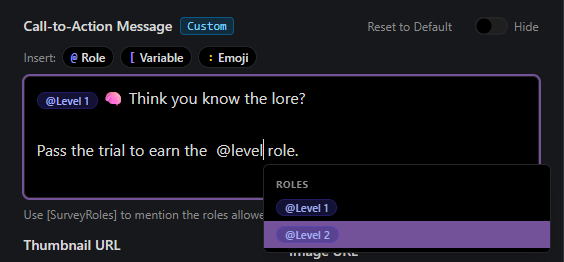
That is the Invite tab’s Call-to-Action Message field in dark mode, with @level typed and the ROLES list filtered down to @Level 1 and @Level 2. The Insert bar sits above the field with its three chips. Until this release the @ picker existed only here. It is now in:
- Settings, under Experience: Default Survey Intro, End of Survey custom Message, XP Closing Message, and Default Call to Action.
- The Script Editor, in the block text field and the outro message body.
- Shorter fields, where the picker is the only way in: the four Poll Messages, and the When correct and When incorrect feedback on graded questions.
@everyone and @here are in the list, behind a confirmation step. They genuinely notify everyone, so the extra click is deliberate.
Two fields lost a picker in this release, on purpose. The Answer Button label in Settings no longer offers variables, because a Discord button label is not templated and only its emoji survives. The End of Survey Footer no longer offers the @ chip, because Discord renders embed footers as raw text, so a mention there would have reached your members as <@&123456>. Neither is an oversight. The destination could not render what the picker produced.
What your respondents see
On Discord, a role mention is a role mention. A survey runs in a private thread inside your community, so mentions resolve natively and do notify, which is what the invitation at the top of this post shows.
On the web, they now read as names. A survey taken through a web link used to show the raw mention code in any message you had written; it now shows @RoleName. This is readable text, not a ping. A web respondent has no Discord membership, so nobody is notified.
The previews caught up too. Settings previews and the Script Editor preview panel resolve mentions to role names, so what you see while writing matches what lands. If a role has since been deleted, or Subo cannot reach Discord to look it up, your original text is left exactly as you wrote it rather than blanked.
[ pulls in context you would otherwise retype
The variable picker has been quietly in place since the web app brought the Script Editor with it. Type [ and you get a categorized list with plain-English descriptions of what each one resolves to.
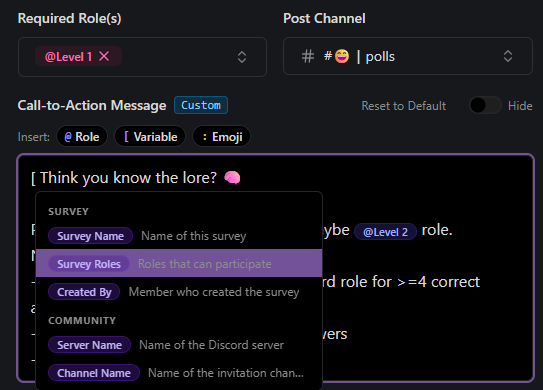
In the same Call-to-Action field, that is Survey Name, Survey Roles, Created By, Server Name and Channel Name. Write your invitation once and it stays correct when you clone it into another project, or into another community.
It reaches further than invitations. In the Script Editor, typing [user. surfaces the Respondent category:
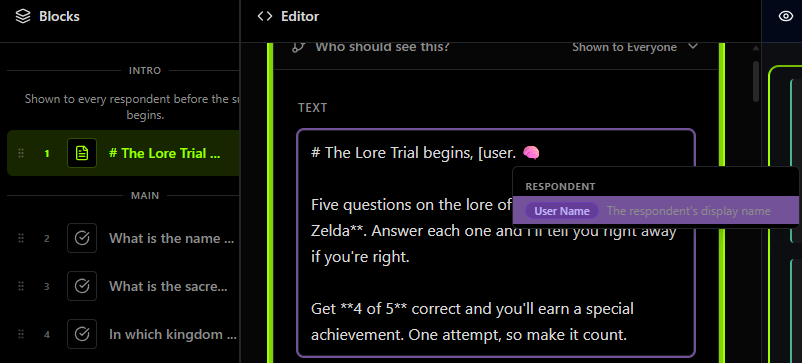
User Name resolves to each respondent’s display name, so one intro block greets every member by name. That is the difference between a form and a conversation, and it costs you one keystroke.
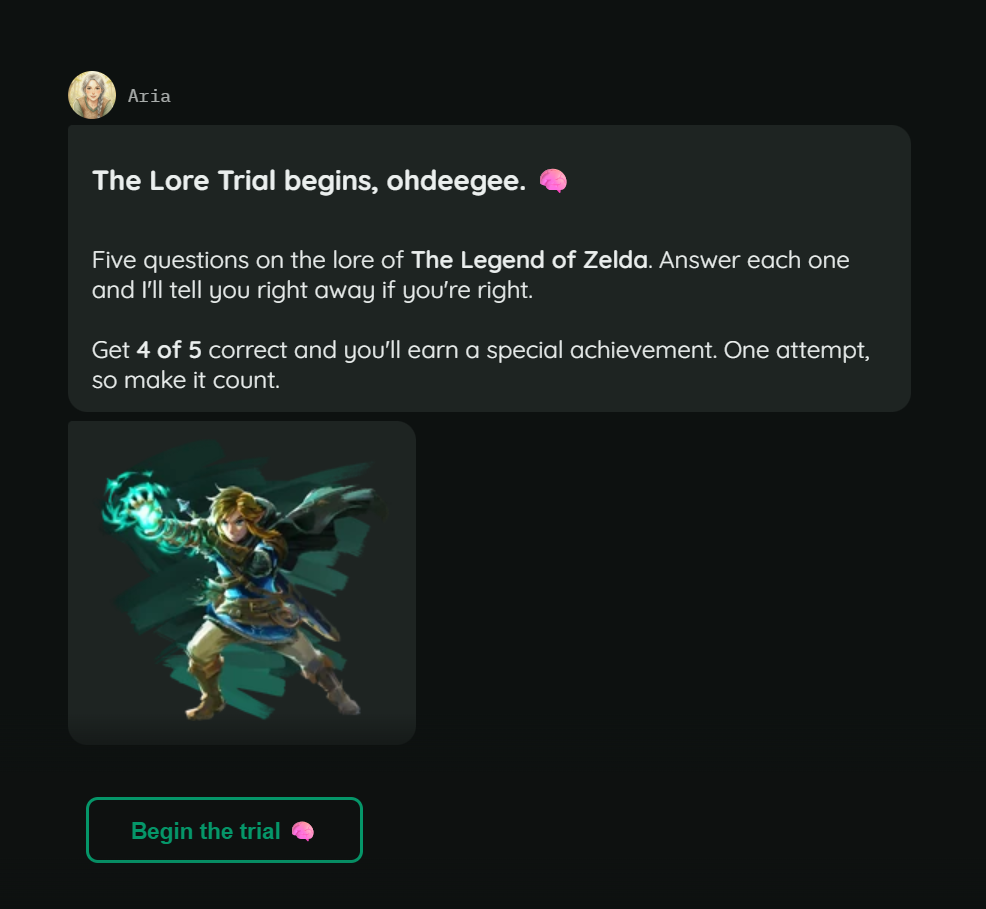
That is the same block arriving on the respondent’s side, in a web Convo. The variable has resolved to their own display name, and the 🧠 typed with : is sitting in the title and on the Begin the trial button. One script, written once, addressing everyone who answers it personally.
The advanced end is quiz scores. On a final block, the picker offers a Scores category:
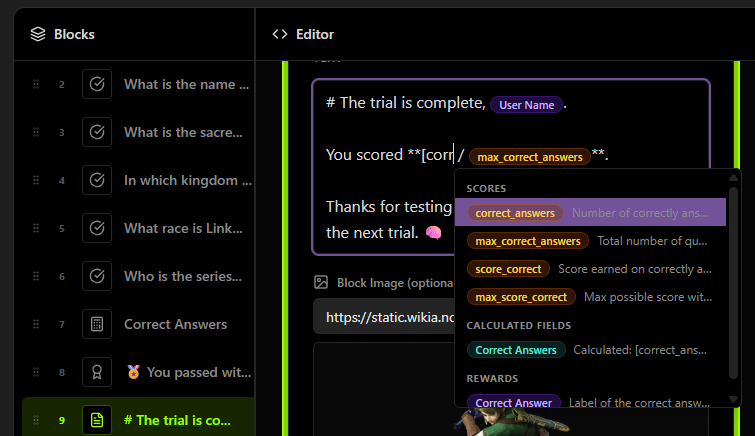
correct_answers, max_correct_answers, score_correct and max_score_correct, plus calculated fields and rewards. “You scored [correct_answers] out of [max_correct_answers]” is a closing message that writes itself for every respondent. If you have not used scoring and grading yet, the graded trivia recipe walks through a full build.
: finds the emoji, including your own
The emoji picker is the third one that has been sitting there. Type : and search.
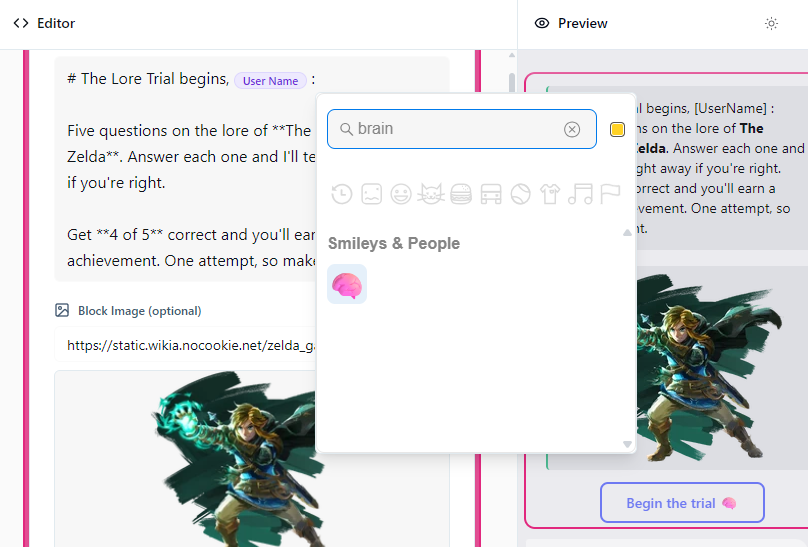
This one is in light mode, which is the other half of a reminder worth making: Subo follows whichever theme you prefer, and the shots in this post deliberately show both. Editor on the left, live Preview on the right, “brain” typed, and the finished message with its “Begin the trial 🧠” button already rendering.
Emoji work on individual answer options too, and the picker includes your community’s own custom emoji:
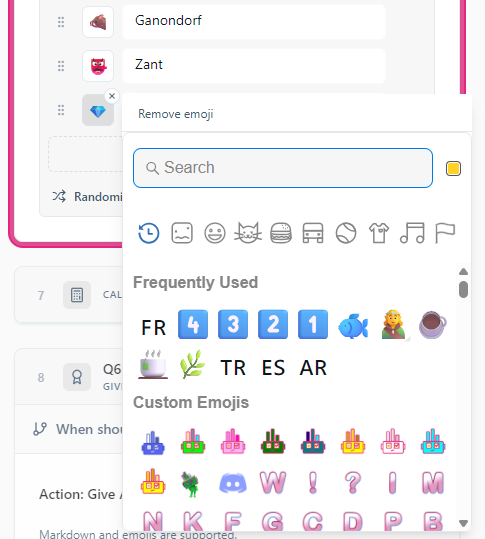
Frequently Used at the top, a full Custom Emojis section under it, and Remove emoji when you change your mind. This is the same customization surface that arrived with poll invitations, now reachable without knowing the emoji’s exact name.
The Insert bar is the actual fix
Every field listed above now carries a hint bar with three clickable chips: @ Role, [ Variable, : Emoji. The help text under the Call-to-Action field says it outright: “Type @ to mention a role, [ to insert a variable, or : to add an emoji.”
Click a chip and the picker opens. You do not have to remember the key, and you do not have to know the feature exists before you can use it. That is the whole point. The [ and : pickers were not missing anything except a sign pointing at them.
All eleven strings are translated into the nine languages Subo ships in, so the bar reads in your own language.
Role mentions and the Insert bar are available on all plans, including free, and they are live now. Open any project’s Invite tab, or the Experience section of your Settings, and the bar is above the message field.
If you want somewhere to try it, the welcome quiz recipe uses all three: a role mention in the invitation, the member’s name in the intro, and emoji on the answer options. Or clone something from the template library and rewrite its messages in your own voice.
Come see it in the Support Server →
Subo is a research tool for communities. Run surveys and polls, reward participation with XP, achievements and roles, and understand what your members actually think.
Frequently asked questions
How do I mention a Discord role in a Subo survey message?
Type @ in any message field in Subo and a picker lists your community's Discord roles. Choose one and it inserts a chip reading @RoleName. You never have to look up a role ID. The picker is in the Invite tab's Call-to-Action field, in Settings, in the Script Editor block text and outro, in the four Poll Messages, and in the correct and incorrect feedback fields on graded questions.
Does mentioning a role in a Subo survey notify everyone in it?
It depends where the survey runs. On Discord a role mention behaves exactly as it does anywhere else in the platform, so members with that role are pinged. For someone answering through a web survey link, the mention renders as the readable name @RoleName and notifies nobody, because a web respondent has no Discord membership to notify. @everyone and @here are available but sit behind a confirmation step.
Can I use my community's custom emoji in a Subo poll or survey?
Yes. Type : in a message field, or on an individual answer option, and the emoji picker opens with a Frequently Used section and a Custom Emojis section listing your community's own Discord emoji. You can search by name and remove an emoji you have already set.
How do I put a member's name in a Discord survey question?
Type [ in the block text and pick User Name from the Respondent category. Subo fills in each respondent's display name when the block is shown, so one script greets every member by name.
Can I show someone their quiz score in the closing message?
Yes. Type [ in the outro message and the picker offers a Scores category with correct_answers, max_correct_answers, score_correct and max_score_correct, plus any calculated fields and rewards on the project. See the graded trivia quiz recipe for a full build.