How to Make a Poll or a Vote on Discord (Native or with Subo)
Polls are one of the fastest ways to get feedback from your community and make decisions everyone feels part of. This guide covers the two ways to run one in Discord, whether you call it a poll or a vote:
- Discord’s built-in poll: free, instant, good enough for a quick vote.
- A survey bot like Subo: when you need more flexibility or more features (e.g. images, more than 10 options, anonymous voting, required roles, rewards, scoring for a quiz or prediction, scheduling, or results you can export…)
Quick or elaborate? For a simple one-off vote, the
/pollslash command below takes seconds, right inside Discord. For anything more involved (multi-question surveys, quizzes with scoring, skip logic, conditional rewards, or reusable templates), the Subo web app is the recommended way to build. Start simple in Discord, then move to the web app when your projects get bigger.
Just weighing Subo against Discord’s native polls? We compare them head-to-head in Discord native polls vs Subo. This article is the how-to.
Poll or vote: on Discord they are the same thing
Plenty of people search for how to make a vote on Discord and land on results about polls. That is not a mismatch. Discord’s own interface calls the feature a poll; most servers call it a vote. One question, a list of answers, one click per member.
The interesting question is what rules the vote runs under. Discord’s native poll deliberately has very few: anyone who can see the channel can vote, everyone can see who voted for what, and the result is a tally you read in the channel. For “pizza or sushi on Friday”, that is exactly the right trade.
It stops being the right trade once the vote carries weight. Picking a raid time, electing a moderator, settling what to build next: now you want to say who is allowed to vote, whether the ballot is secret, and whether the result is recorded somewhere you can use later. That is what the /poll command in Option 2 adds.
Option 1: a Discord poll without a bot (the native vote)
Discord now has polls built in, no bot required:
- In the message box of any channel, open the + menu (or the poll icon) and choose Create Poll.
- Type your question.
- Add your answers (up to 10), each with an optional emoji.
- Pick a duration (1 hour up to 1 week) and, if you want people to pick more than one option, toggle Allow multiple answers.
- Send it. Members vote by clicking an answer, and the tally updates live.
Native polls are convenient for a quick, casual vote. Their limits: results are always public, anyone in the channel can vote, there’s no anonymity or role-restriction, there is no reward (XP, role, etc) for those who participate and you can’t export or combine the data. When those matter, use a bot.
Option 2: polls and votes with a bot (Subo)
Subo the Survey Bot turns a poll into something you can actually run a community on: anonymous or transparent, role-gated, rewarded, scored, scheduled, and exportable alongside your survey data.
Three ways to start a Subo poll
Once Subo is on your server, you can create a poll three ways:
/poll: build one directly in Discord (the walkthrough below)./template: start from a ready-made poll template and tweak it. Templates work right in the Discord bot, and are even easier to adapt in the web app./draft: let Subo’s AI write it for you. For a poll, just ask it to generate a one-question, closed-question survey, and Subo drafts the question and options ready to edit.
The /poll walkthrough
Type /poll in the channel where you want it posted (you can move it later).
- Enter your question.
- Enter your answer options, separated by semicolons
;, for exampleUnity;Unreal;Blender. You can add emojis:🤝Unity;👽Unreal;🥤Blender. Up to 24 options. - Hit Enter, review the summary, and press Start Now to publish (or Edit to make changes).

That’s the whole flow for a basic poll. But this is where Subo pulls ahead of a native poll: the /poll command exposes 23 options, so you can shape almost everything before you post. You don’t need them for a quick vote, but they’re there when you want them.

All 23 /poll options, grouped by what they do
Timing and lifecycle
start: schedule when the poll opens (e.g.2h30mto start in 2½ hours).time_limit: how long the poll stays open (e.g.1d12h).
How people vote
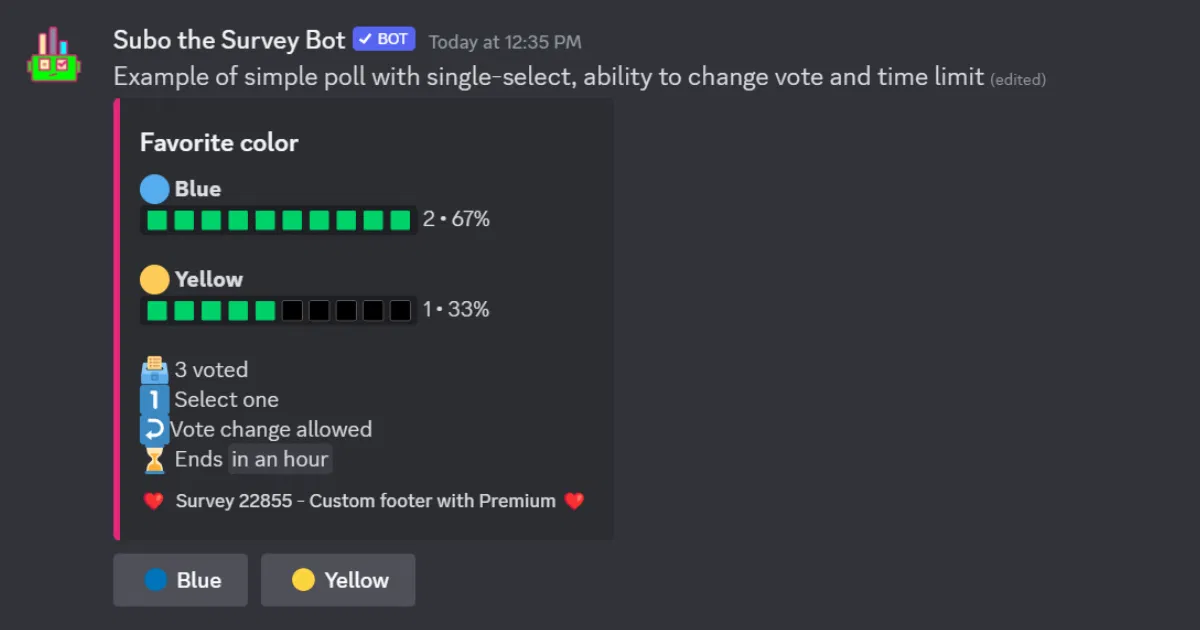
max_select: cap how many options a voter can pick (1makes it single-choice or yes/no). If you don’t use the option participants are allowed unlimited answersvote_change: let voters change their vote, or lock their first vote as final.voting_button: the voting style: full answer inside a button, emoji-only inside a button, or a select menu (recommended for more than 6 answers).required_role: only members with a given role can vote.
Results and privacy
realtime_results: Public (everyone sees the tally), Voters-only (results appear after you vote), or Hidden (only you see them until the end).final_reveal: publicly reveal a hidden or voters-only poll’s results when it closes.privacy: Transparent (any member can see who voted for what), Semi-Private (only you, the creator/admin, can), or Anonymous (no vote is linked to anyone, not even for you).
Quiz and scoring (turn a poll into a graded quiz)
scoring: switch scoring on.correct: mark the correct answer(s), shown with a ✓ once the poll closes.scores: give each option its own points, and pipe the total with[score].
Rewards
role_reward(Premium): grant a role to participants to all completers (you can grant it conditionally based on how they answered.xp: award XP, either a flat amount or based on the score / correct answers.
Appearance and branding
chart_emoji: pick the emoji used to draw the result chart.image: add an image to the poll.thumbnail(Premium): add a thumbnail (small image) to the invitation embed.color_open/color_closed: set the invitation’s border color while open, and (Premium) a different color once it closes so a finished poll looks visibly different.call_to_action: the invitation message shown above the poll (ping a role, set the scene, motivate people to vote).info_display: decide whether to show poll details inside the invitation embed or tucked into an ephemeral to keep the embed clean. To choose which info rows to show/hide inside the poll details, use the web app
Organization
name: give the poll a memorable name so it’s easy to find later.channel: pick the channel or thread to post in.
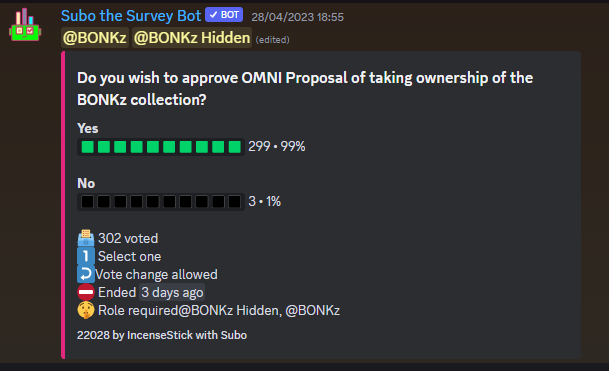
After you hit Enter, Subo shows a summary before anything goes live. Click Edit to fine-tune further: set multiple required roles, auto-post results to a channel when the poll closes, tweak the invitation, or clone the poll for repeated use.
When to move to the web app
The /poll command is fast, but for bigger or recurring work the Subo web app is the recommended way to build. It’s a visual editor for polls, surveys, and quizzes with full management, analytics, and team access.
- Start from a template: this-or-that polls, feature-prioritization votes, prediction contests, governance proposals and more, ready to run in a click. See the template library.
- Design a full quiz with native scoring: correct answers, per-option points, and a leaderboard. The prediction poll and trivia quiz recipes walk through both builds end to end.
- Dress up the invitation with a custom design worth clicking.
Automate polls with the API
Subo also has a public API, so you can create and post polls programmatically. Hand it to your favorite AI agent or LLM and let it run: for example, have it post a fresh poll to your server automatically every morning. See the API launch post for what’s possible.
Which should you use?
For a throwaway vote, Discord’s native poll is fine. The moment you care about honest answers, who can vote, rewarding participation, scoring a quiz, automating, or keeping the data, reach for Subo. For the full breakdown, read Discord native polls vs Subo. Weighing other bots too? See the best Discord poll bots comparison, and pricing for what’s free vs Premium.
Ready to go? Invite Subo to your server and run your first /poll.
Frequently asked questions
How do you create a poll in Discord?
In the message box of any channel, open the + menu or the poll icon and choose Create Poll. Type your question, add up to 10 answers, pick a duration between 1 hour and 1 week, and send. Members vote by clicking an answer and the tally updates live. No bot needed.
How do you make a vote on Discord?
Discord calls it a poll, and it is the same feature. In any channel, open the + menu or the poll icon, choose Create Poll, type your question, add up to 10 answers and pick a duration between 1 hour and 1 week. Members vote by clicking an answer. If you need a secret ballot, a role restriction, or a result you can export, run the vote with a bot instead.
Can you create a Discord poll without a bot?
Yes. Discord has polls built in, and for a quick casual vote they are the right tool. The limits are that results are always public, anyone in the channel can vote, there is no anonymity or role restriction, no reward for participating, and you cannot export the data.
How many options can a Discord poll have?
Discord's native polls allow up to 10 answers, each with an optional emoji. Subo polls allow up to 24 options, and effectively no character limit per option in emoji mode.
How do you make an anonymous poll in Discord?
Native polls cannot be made anonymous. You need a bot: with Subo, add the privacy option to the /poll command and choose Anonymous, so no one can see who voted for what, including you.
What bot should you use for votes on Discord?
Any poll bot will run a basic vote, so choose on the rules you need rather than on the vote itself: whether the ballot can be anonymous, whether you can limit voting to a role, whether voters can change their answer, and whether you can export the result. Subo's /poll command covers all four, and the same project can also carry a multi-question survey or a scored quiz.
How do you start a poll with Subo?
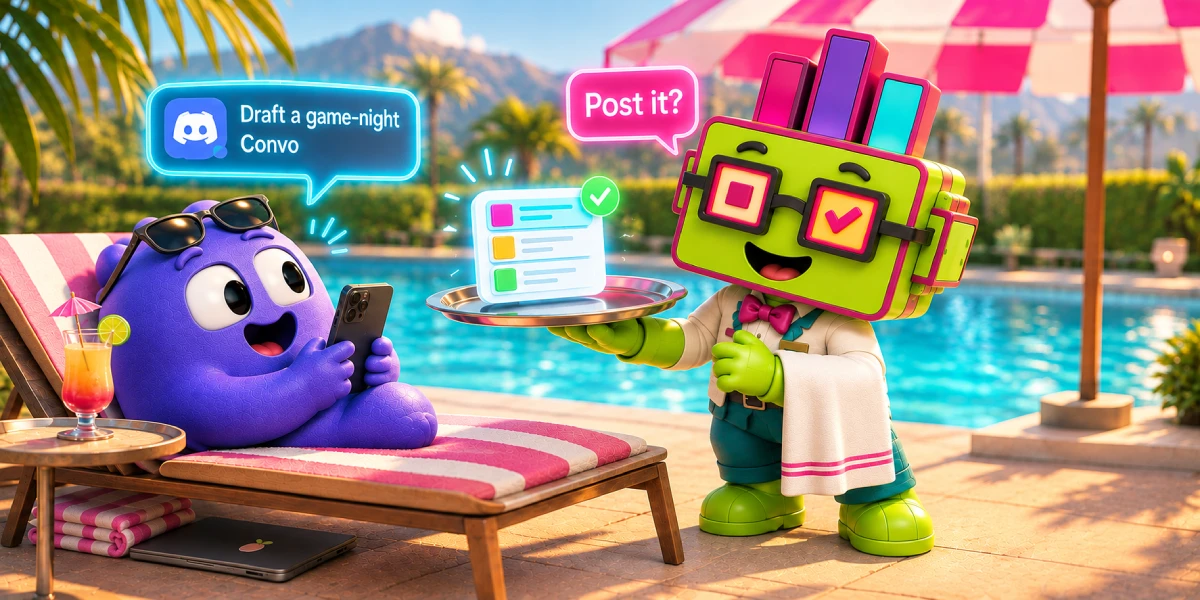
Three ways. Run /poll to build one in Discord, /template to start from a ready-made poll template, or /draft to have Subo's AI write it for you. You can also build and manage polls visually in the web app.