How to Create a Multi-Question Survey in Your Discord Community with Subo the Survey Bot
Understanding their community is the superpower of the most powerful brands and creators.
Whether you’re running a Discord server to connect with your followers, fans, customers, users, colleagues, fellow fans or friends, gathering feedback helps your community feel heard, and helps you understand who they are, what they need, and where to improve.
One of the most effective ways to gather that feedback is a survey.
Subo the Survey Bot lets you create one-question polls and multi-question surveys natively in your Discord server. You can build from scratch with the /survey command, let AI draft one for you with /draft, or start from a ready-made template. For what the finished thing looks like to the person answering, see the Discord survey page: questions arrive one at a time, as a chat.
Two ways to build, pick by complexity. This guide walks through creating a survey right inside Discord with
/survey, which is perfect for simple, quick surveys. For anything more elaborate, like skip logic, scoring and quizzes, conversational Action Blocks, team management, or richer analytics, build visually in the Subo web app, which is the recommended way for bigger projects. Everything below has a visual equivalent there. Subo follows a freemium model: free for most users, with Premium tiers for power-users (see pricing).
In this post, we’ll create a multi-question survey from scratch in Discord with Subo the Survey Bot.
-
Invite Subo the Survey Bot to your Discord server. Follow the directions to give Subo the recommended permissions.
-
Type
/survey. You can type the command in the channel where you want to post the survey (or from another channel and move it later).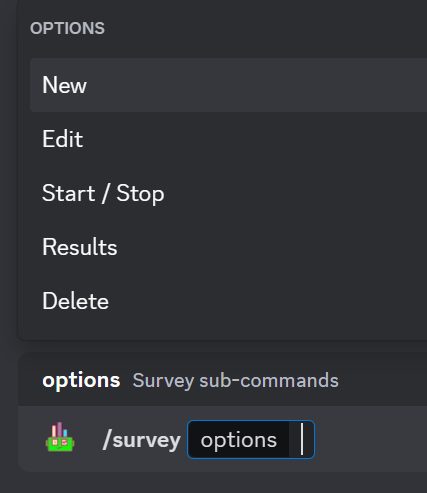
Or run the /home command and select the New Survey button

-
A new private thread called
new-surveywill open for you to chat with Subo in your creator channel. Just answer Subo’s questions to create your survey! Thenew-surveythread is private. It can only be seen by you, unless you add someone manually.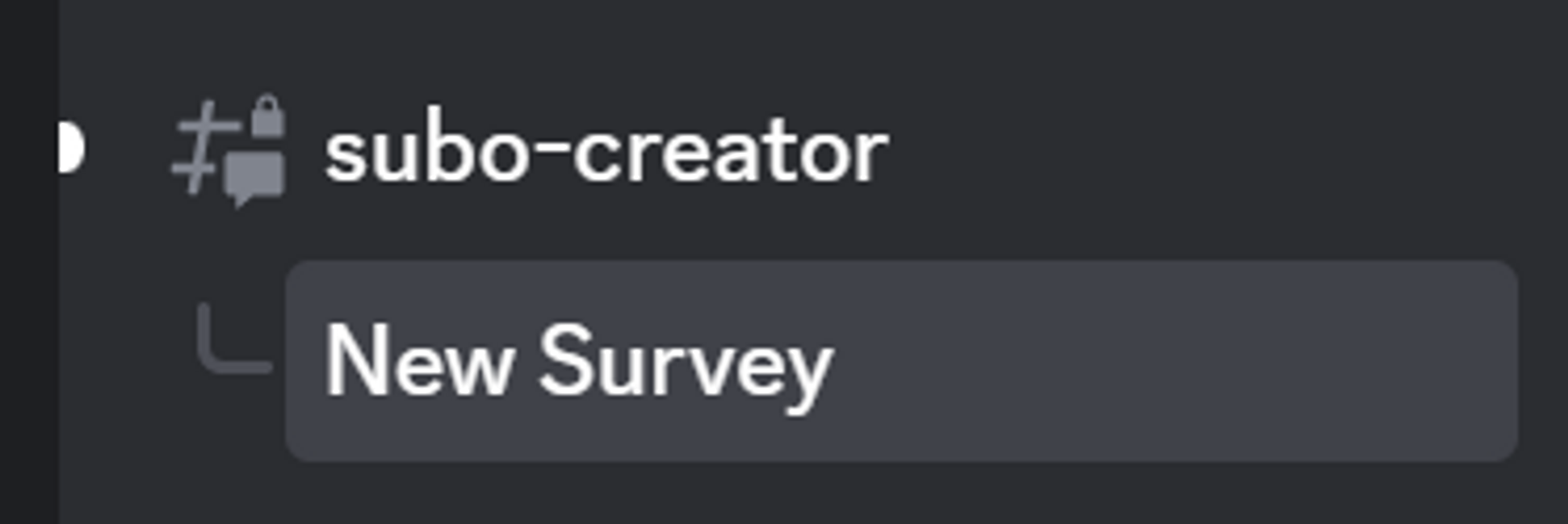

-
Name your survey.
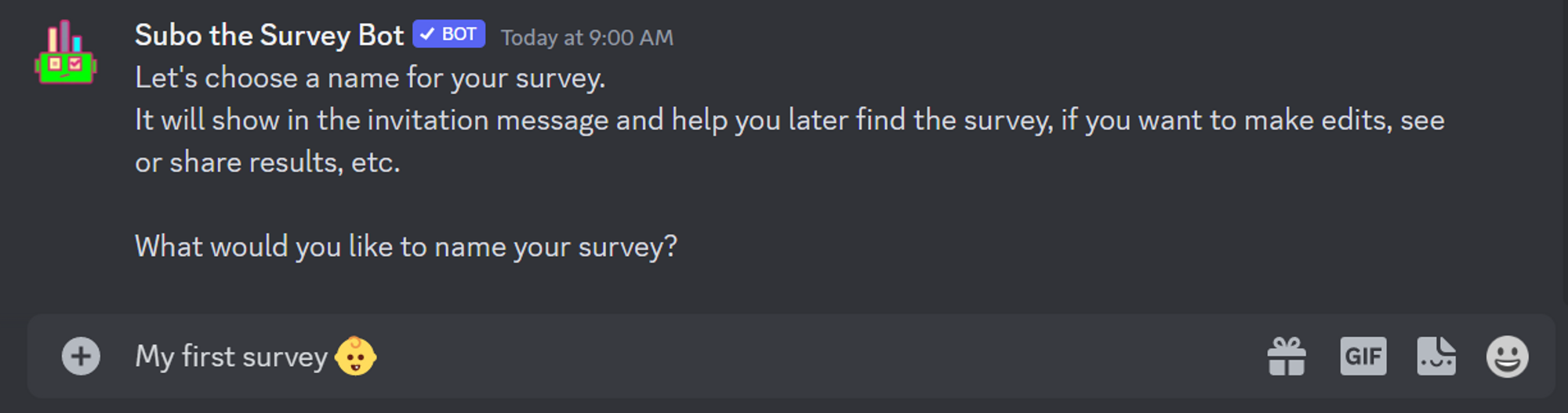
-
Write your first question.

-
Define what type of question you want.
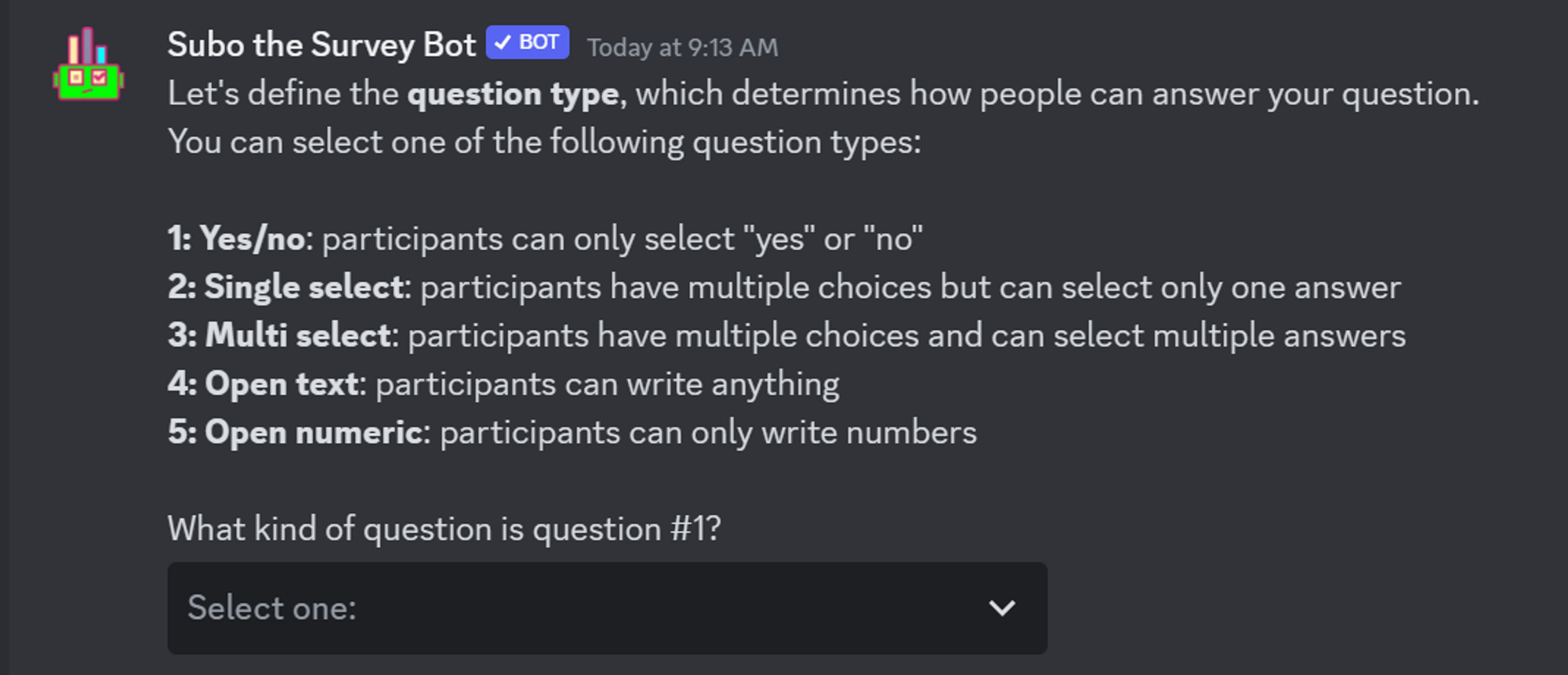
Subo currently supports the following question types:
yes/no: participants can only answer ‘yes’ or ‘no’. Example: Should we transfer the Guild to a new server? 💡 Note that ‘yes/no’ is auto-translated into every language Subo’s bot supports: English, French, Spanish, German, Italian, Portuguese, Dutch, Polish, Russian and Turkish. For any language outside that list, pick a single-select question and translate ‘yes;no’ into your survey’s language (example:ja;nein).single-select: Participants can only select one answer among up to 25 choices. You will determine which options to choose from in the next step. Example: What do you think is the current Battle Mode’s biggest shortcoming?multi-select: Participants can select as many answers as they want similar to single choice in that several options are presented. Example: What days are you available for our next movie night? (Note: you can define later the maximum number of answers your respondents can select withEdit Questionnaire).open text: participants can write anything they want. Use this question type when you want to give maximum freedom for your members to give their opinion. Example: How can we make the next server event more fun?open numeric: looks like open text, but only accepts numbers (integers) as an answer. Example: How much (in $ per month) would you consider an affordable monthly subscription to get access to this premium channel?content block: says something without asking anything. Use it for an intro, a rule, or a bit of context between two questions. Example: Thanks for taking part. The next three questions are about the new event schedule.
Four more types live in the web app. The picker above is what
/surveyoffers in Discord. Rating (2 to 10 points, drawn as stars, numbers or emoji), Opinion Scale (agreement or satisfaction between two named ends, which is how you write a Likert item), NPS (the standard 0 to 10 recommendation question) and Ranking (put options in order) are added in the web app’s Script Editor instead. They are authored there, not asked there: a member answers them by tapping buttons in Discord like any other question. What differs is the answer, stored as a number, so the question comes back as a score rather than a tally. See rating scales, NPS and ranking in Discord for what each one is good for.
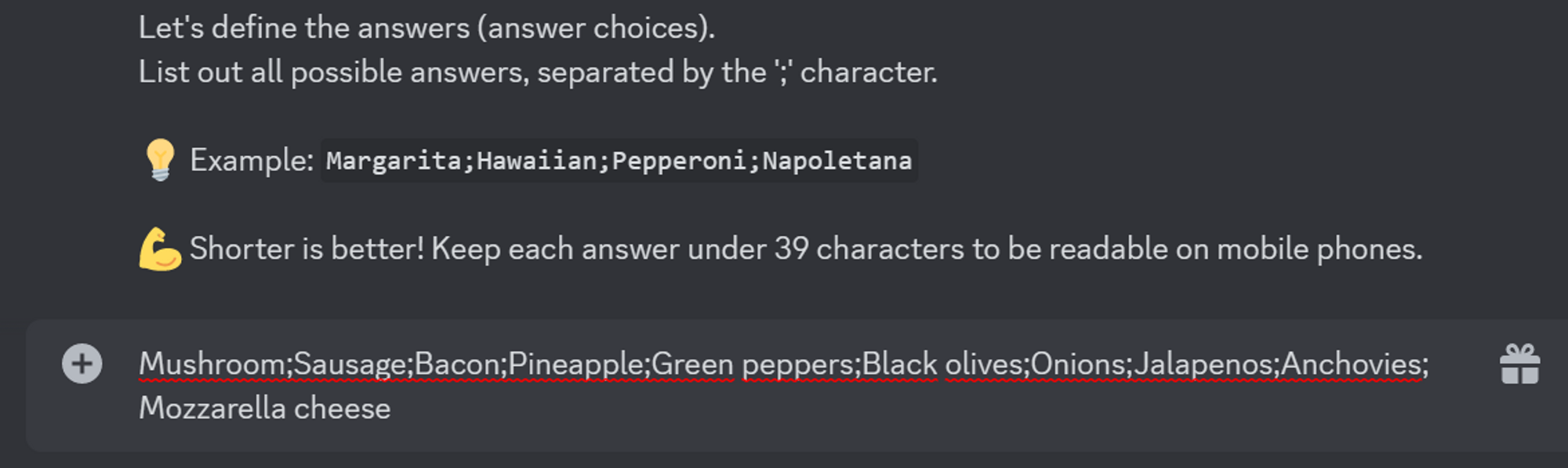
- For single-select and multi-select, enter up to 25 possible options for the answers, with ”;” between each option. You can use text and emojis (standard, custom).
Example: ⚪ Margarita; 🍍 Hawaiian; 🔴 Pepperoni; 🍄 Regina
-
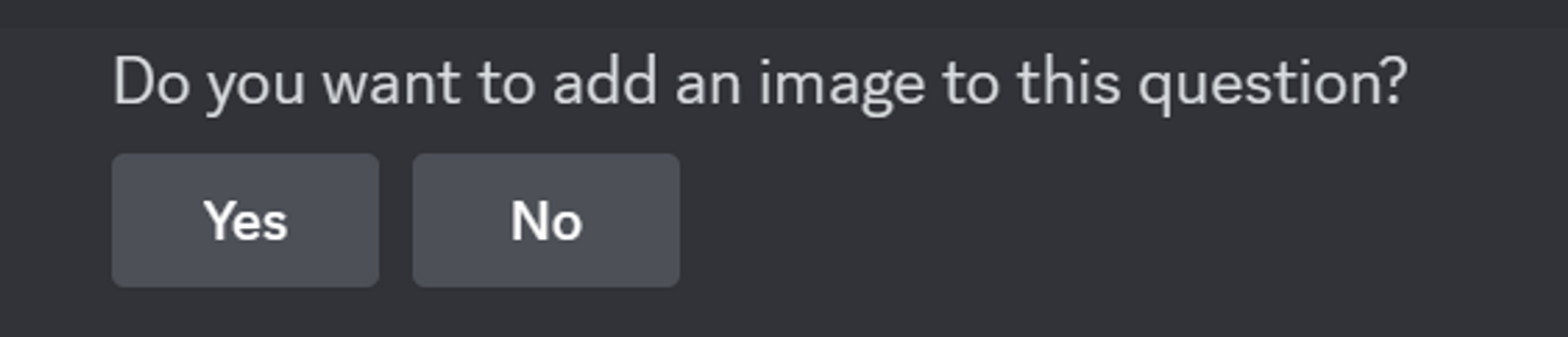
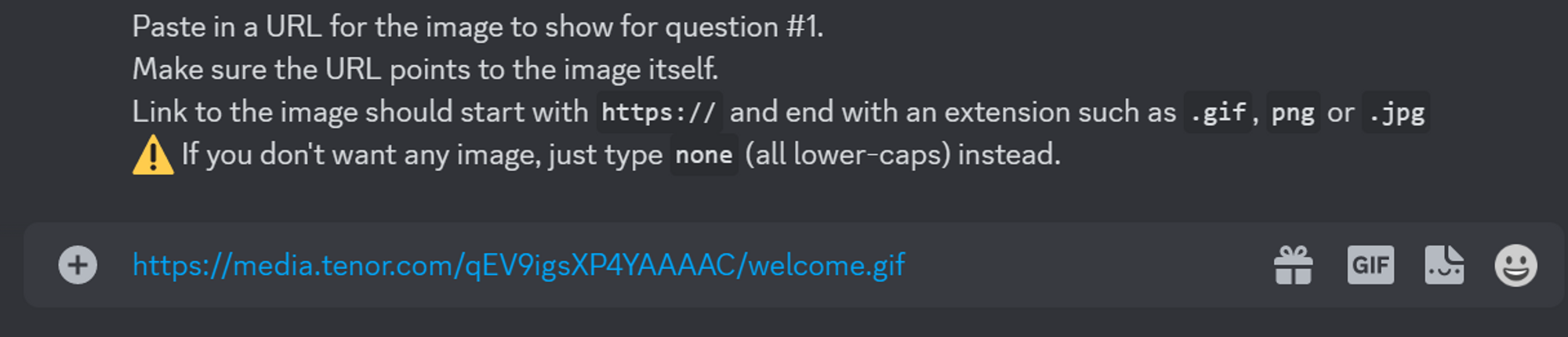
Add an image (optional) by pasting the image’s URL
-
Add more questions if needed, by repeating steps 5 to 8 for each new question. Add as many questions as your survey needs (see pricing for what each plan includes).

If you only have 1 question to ask, Subo will ask you to choose between poll and survey mode:
- ⚡poll mode: your members can vote and see results publicly in the poll embed
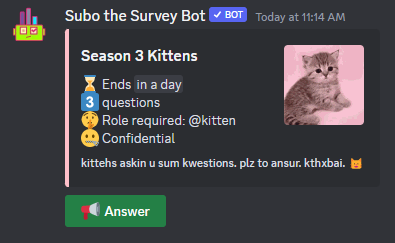
- 📋survey mode: your members will see an invitation message. When they press the button, Subo sends them the survey in a DM so they can answer privately. If their DMs are closed, it falls back to a private thread under the invitation, and then to a web link, so the button always leads somewhere. On an Anonymous survey there is no thread step: it is the DM or the web, because a private thread is readable by anyone with Manage Threads.
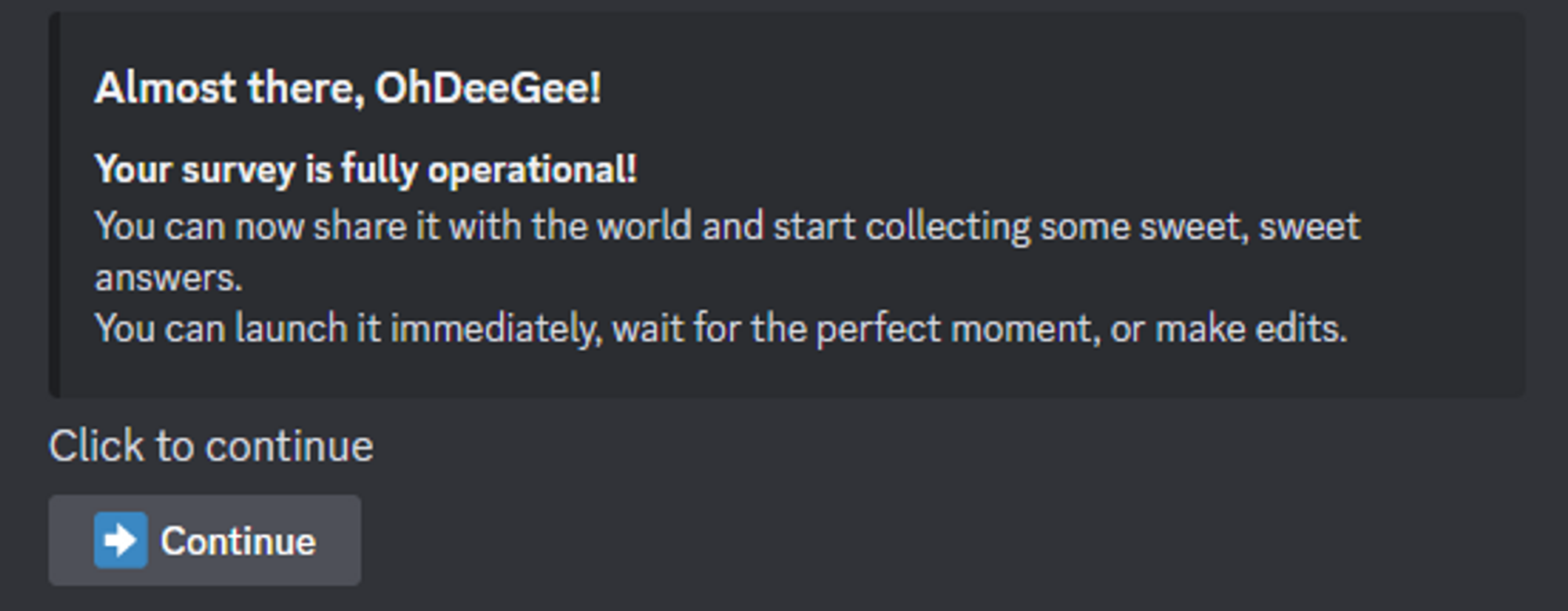
- Your draft is ready.
Now it’s time to fine-tune. Click Continue
- The next screen will show you details of your project: read it carefully, it is still possible to change everything at this point.
In particular:
- check the full questionnaire: questions, answers, question types, images, maximum selections.
- check that your survey is posted in the channel that you want, is restricted to the right role, with the right time limit, etc. These options come from your server’s default settings and can be edited.
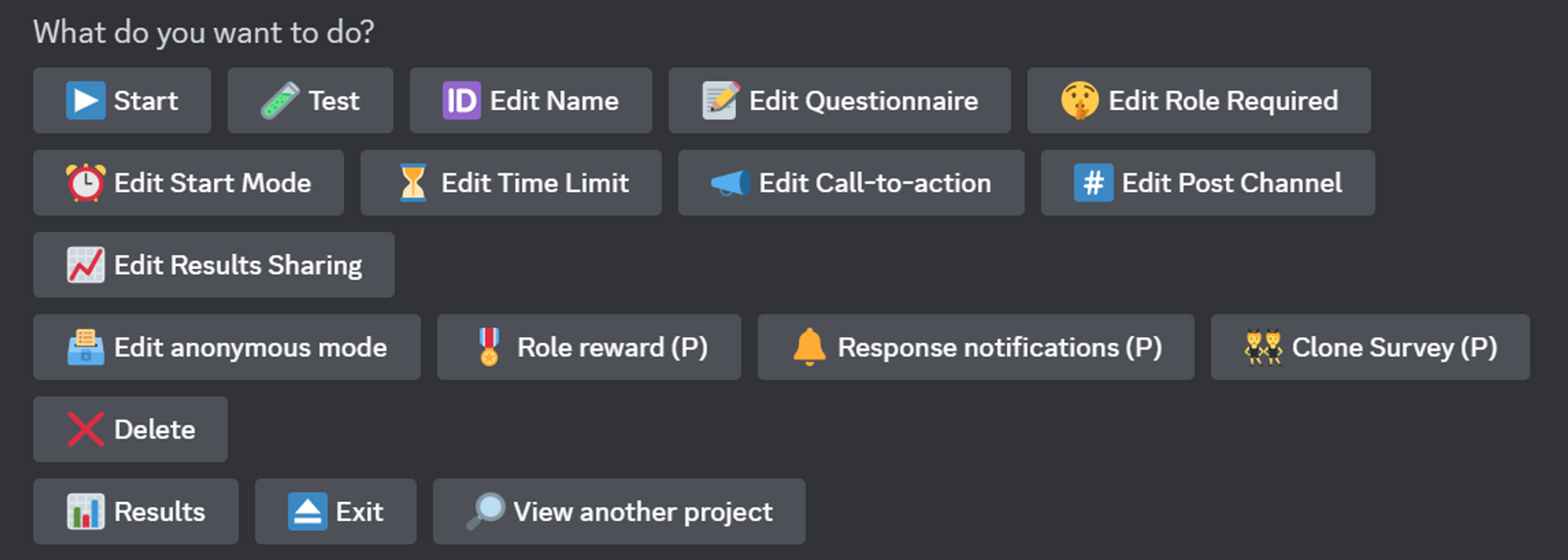
- test the survey with the
Testbutton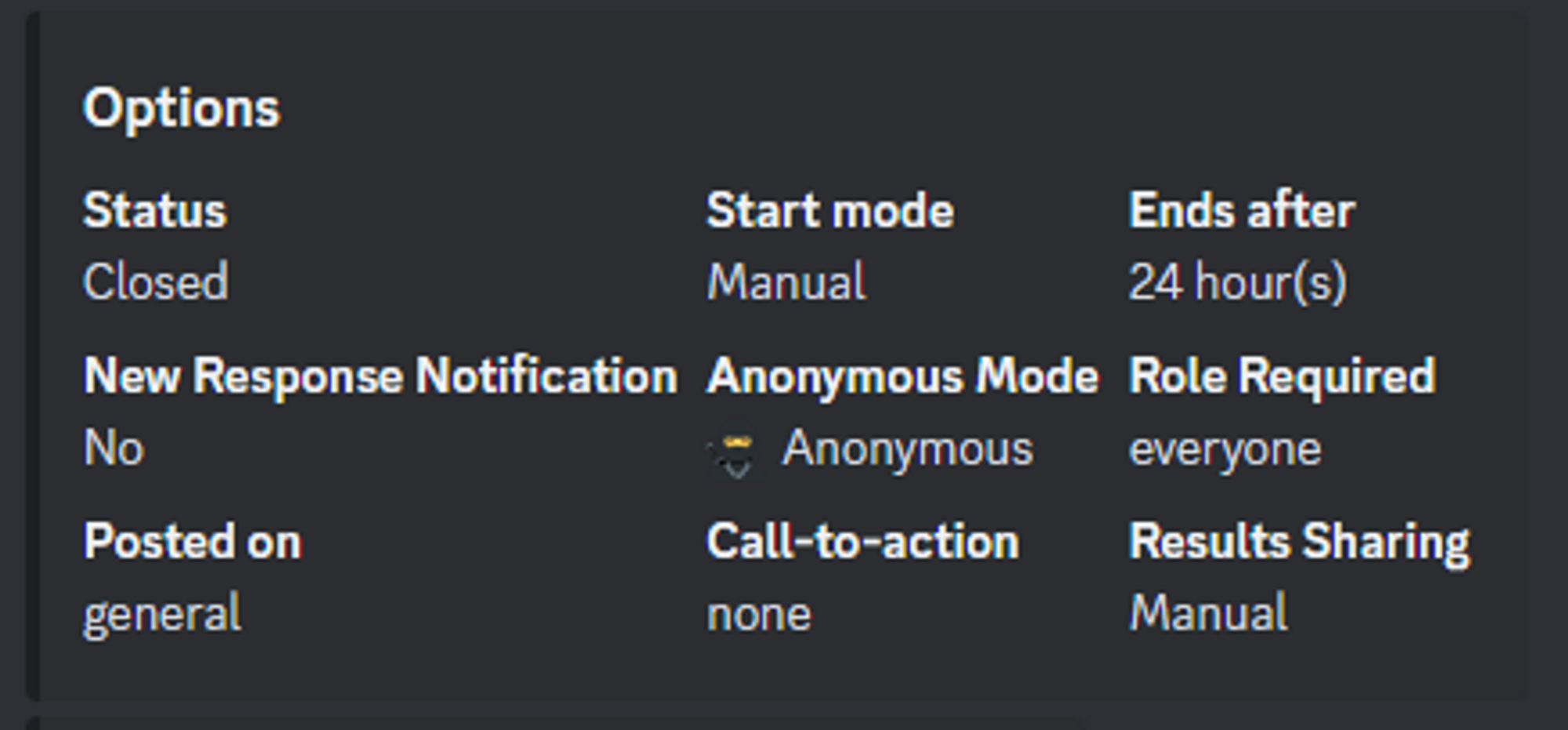
If you are happy with your questionnaire and options, hit Start to open the survey immediately or ⏰ Edit Start Mode to schedule it to launch later.
Customize the many default options that come from your settings (you can edit those later in /settings).
- If you want to make any changes, use one of the buttons
- You can also take a break, exit and finish the setup later (
Exit): your project is saved. It’s never too late to fix mistakes and make changes. You can edit the survey by running the/Editcommand.
Congratulations! You have written your first survey!
Want to make it even easier next time? Instead of starting from scratch:
- Start from a ready-made template with the
/templatecommand and tweak it to fit. See the template library, or the recipes if you would rather see how a survey is built block by block. - Let Subo’s AI survey generator draft a questionnaire for you based on your objectives with the
/draftcommand. - Clone an existing survey, even across servers, and modify it.
- Build and edit visually in the web app when you need scoring and quizzes, conversational Action Blocks, or team access. Read why we built it.
Remember to design effective surveys with clear and concise questions.
Surveying your community in Discord is an essential tool for building a successful and engaged community. By gathering feedback from your members, you can gain valuable insights into their needs, preferences, and pain points. Armed with this information, you can make data-driven decisions about how to improve your server, your products/services, increase engagement, and keep your members happy.
Frequently asked questions
How do you create a survey in Discord?
Add Subo to your server and type /survey. A private thread opens where you answer Subo's questions to build yours: name the survey, write each question, and pick the question type. You can also start from a template, have AI draft one with /draft, or build it visually in the web app.
What is the difference between a poll and a survey in Discord?
A poll is a single question with a live tally in the channel. A survey is a set of questions asked in sequence, one at a time, with the answers collected per respondent so you can analyze and export them. Subo does both.
Should I build my survey in Discord or in the web app?
Use /survey in Discord for simple, quick surveys. Build in the web app for anything more involved: skip logic, scoring and quizzes, conversational action blocks, team management, or richer analytics. Everything in the Discord flow has a visual equivalent there.
What question types can Subo ask in Discord?
The /survey wizard in Discord offers six: yes/no, single-select, multi-select, open text, open numeric, and a content block that says something without asking anything. Four more are added in the web app's Script Editor and answered in Discord like any other question: Rating, Opinion Scale, NPS and Ranking. Those four store the answer as a number, so the question comes back as a score rather than a tally. See rating scales, NPS and ranking in Discord.
Is Subo free?
Subo follows a freemium model: free for most users, with Premium tiers for power users. Every privacy mode, including Anonymous, is available on all plans. See pricing for what each tier adds.